Binolla Trading Platform: What You Can Do Before Depositing
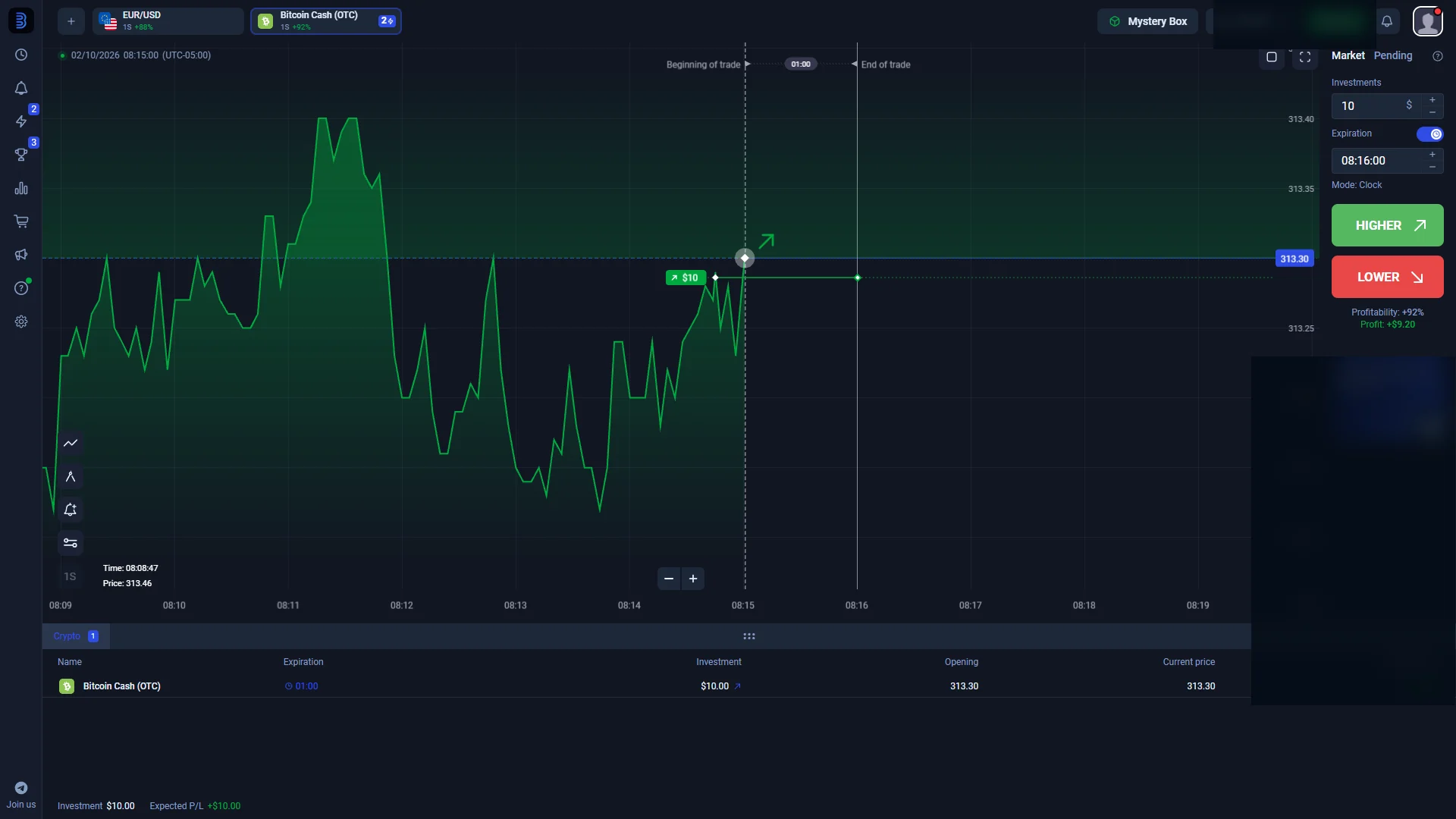
Binolla's main workspace brings a chart and a Fixed-Time contract panel together. The screenshot in this guide shows Bitcoin Cash (OTC) selected, with additional assets in the symbol bar. On the right are the investment amount, the expiration setting and the Higher and Lower controls. The Market / Pending selector distinguishes an immediate order from one prepared for a later price or time trigger.
These controls answer four questions before a contract is opened: Which asset? How much is committed to this one trade? When will it expire? Which direction is selected? The investment amount belongs to a single contract; it is not the required deposit for a real account. Likewise, a payout percentage displayed next to a contract is not a fixed return offered on every symbol.
A newcomer can inspect the chart, find the asset list and switch between chart tools while practicing. This makes the demo useful even if no real-money contract is ever opened. If you are using a registered account, check the balance selector at the top of the platform: Demo and Real accounts are separate modes. Using Demo does not automatically switch to a real balance when you place a contract.
Our images show the controls on a saved Binolla screen. Later features, including Multichart and improved Pending Orders, are discussed separately so you can tell the photographed layout from a newer published feature.
Binolla Demo Account: $100 Guest Access vs $10,000 After Sign-Up
There are two different Binolla demo scenarios worth separating. On June 11, 2025, the platform announced a Demo Access button that opens a guest practice session with $100 in virtual funds without prior registration. Its regular account system also provides a $10,000 virtual demo balance after registration. Both figures describe simulated funds, not a cash bonus or an amount you can withdraw.
Route A: try Demo Access without creating an account
- Open the platform from this guide and look for the Demo Access control in the site header.
- If it is present, select it to open the practice terminal. The June 2025 announcement specified a $100 virtual starting balance.
- Use the asset menu, chart and investment/expiration fields to become familiar with the workspace. No deposit is needed for that announced guest route.
- To keep using an account under your own login, follow the normal registration path instead of treating a temporary guest session as a permanent profile.
Route B: use the demo account after registration
- Complete the registration form described in the next section and sign in.
- Click the balance selector at the top of the terminal, then select Demo rather than Real.
- Binolla advertises an initial practice balance of $10,000 virtual. You may practice with this without funding the real account.
- If the practice funds run out, open the balance menu, select the three-dot settings menu and choose Refresh Balance to restore virtual funds.
| Demo route | Starting funds | Account needed? | Main use |
|---|---|---|---|
| Guest Demo Access | $100 virtual | No, in the June 2025 feature announcement | Quick inspection of the terminal |
| Registered Demo | $10,000 virtual | Yes | Returning to practice under one login |
The general Binolla FAQ still describes registration as necessary to use platform functions. The later guest-access announcement explains the apparent difference: the guest button was introduced as a separate route. If the button is not visible in your current version, use the registration route. You can explore the demo without a real-money top-up.
Binolla Registration: Create an Account Step by Step
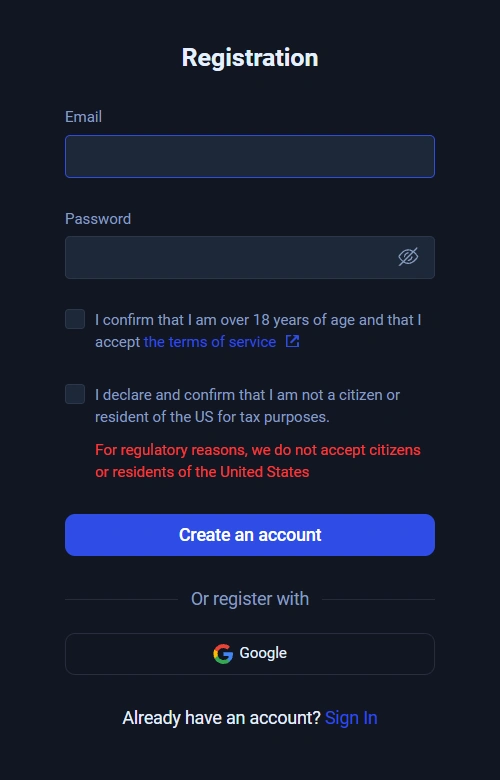
For returning practice sessions, use Binolla registration rather than the temporary guest route. The actual registration form is reproduced beside these instructions; it shows the fields and confirmations before an account is created.
- Open Binolla and select Sign Up or the registration option. If a login form appears instead, choose the link to create an account.
- Enter an Email address you control. You may need it for account communications and later password recovery.
- Create a Password in the field directly underneath. Treat it as an account password, not a trading or deposit code.
- Read the eligibility statements. The visible form has a confirmation that you are over 18 and accept the terms of service, plus a separate declaration that you are not a US citizen or resident for tax purposes. The form explicitly says US citizens or residents are not accepted.
- When the declarations accurately apply to you, submit using Create an account. The form also offers a Google registration choice for users who prefer that method.
- Follow any further verification or confirmation prompt that the platform presents, then select the Demo balance before opening the trading terminal.
Notice what the captured first form does not ask for: there is no phone number or identity-document upload field on that initial screen. Account verification may be requested later for certain functions, notably real-money withdrawals. Entering details into a registration page is not a deposit.
Already registered? Use Sign In beneath the form instead of creating a second account. That is also the correct route if you previously opened a registered demo balance and want to continue where you left off.
Binolla Login: Sign In, Reset Your Password and Choose an Account
If you have an existing profile, use the Sign In option from Binolla's account area. The registration screenshot shows that exact link below the sign-up controls, so you can distinguish an existing-account login from the account-creation form.
- Open the Binolla platform and find Sign In. Do not select Demo Access if your goal is to return to a saved registered account.
- Enter the email and password associated with the profile. If you originally used Google registration, use the corresponding sign-in method when offered instead of creating a separate email/password profile.
- After entering the terminal, open the top balance selector and confirm whether you are in Demo or Real mode. The account type controls which balance is used for a contract.
- If the practice balance appears exhausted, use the demo balance settings and Refresh Balance; that does not require a real-money deposit.
Forgotten Binolla password
Go to the login form and use its Forgot password or recovery control. Submit the email linked to your account and follow the reset instructions sent by the platform. After setting a new password, sign in normally and confirm the account mode before continuing. If you cannot receive the recovery email, first check the address you used at registration rather than opening multiple new accounts.
Guest Demo Access is a separate short route into a practice environment; it is not a substitute for an existing registered account's email and password. Likewise, any account balance shown in the terminal belongs to the selected account mode, not necessarily to the profile you expected to open.
Fixed-Time Trading on Binolla: Asset, Investment, Expiration and Higher/Lower
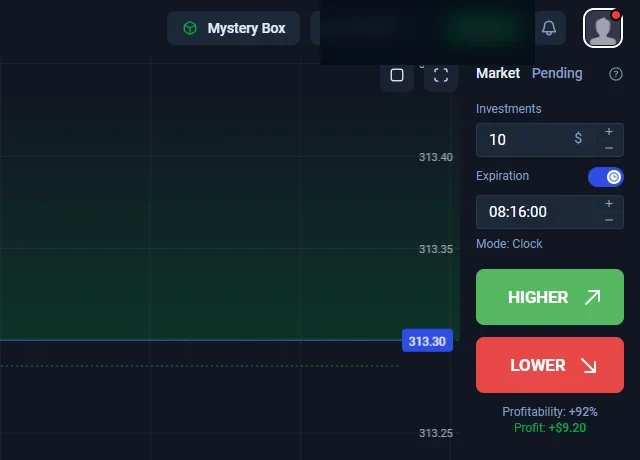
The main Fixed-Time ticket is a sequence of decisions, not a generic buy or sell button. First choose an asset from the symbols above the chart. Next set the investment, meaning the amount assigned to this individual contract. Then adjust the expiration, the point at which the contract's result is determined. Only after those fields are understood do the two direction buttons, Higher and Lower, have a definite meaning.
- Asset: verify the selected name, including any OTC label, because changing assets changes the chart and available terms.
- Chart: use the historical price view and chart settings to understand the selected time scale. A candle interval is not the same thing as contract expiration.
- Investment: enter the amount for one contract. Binolla advertises a minimum investment from $1; the field is separate from the $5 advertised deposit minimum.
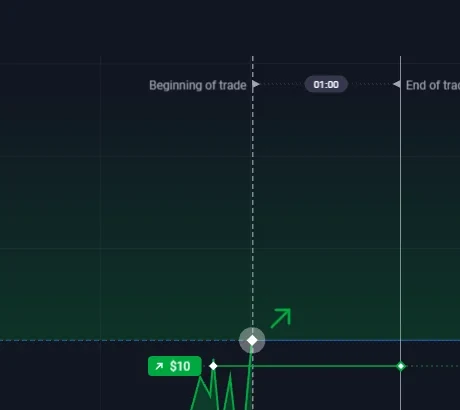
- Expiration: check when the contract ends, not merely the time remaining to enter it. A purchase countdown can close before the contract itself expires.
- Profitability: read the percentage displayed for the current asset and moment; do not treat a past screenshot's rate as today's offer.
- Direction: Higher represents an outcome above the relevant entry/reference level at expiration; Lower represents below it. The outcome is determined by the contract rules at expiration.
For example, changing the chart from one-minute candles to five-minute candles changes the visual grouping of price history, but it does not by itself change an already selected expiration. Similarly, changing the investment value affects the amount assigned to the contract, not the size of your registered Demo balance. Practice mode is a useful way to see these distinctions in a low-stakes environment.
The panels at the right enlarge two parts of the same captured terminal: the trade controls and the timeline. They help you locate the fields but are not screenshots of separate trades or evidence of a completed withdrawal.
Pending Orders: Price-Based and Time-Based Entry
Binolla introduced enhanced Pending Orders in March 2026. Instead of entering at the current moment, a Pending Order lets you define when a contract should open. A price-based order waits for an asset to cross your chosen level; a time-based order waits for a specified future time. The contract still needs an investment amount, direction and expiration settings.
| Order method | What triggers the contract? | What to check |
|---|---|---|
| Market | Immediate entry workflow | Current investment, expiry and payout |
| Pending by price | Selected price level is reached | Trigger level, investment and direction |
| Pending by time | Selected future time arrives | Scheduled time and contract expiration |
- Choose the asset and change the terminal selector from Market to Pending.
- Select a price trigger or a future execution time.
- Set the investment, contract expiration and Higher/Lower direction. Review any profitability condition offered by the Pending Order dialog.
- Submit the pending instruction and locate it in the Orders area. You can edit the trigger, change the amount or cancel the order before activation.
The operator's FAQ states that Pending Orders work in the demo account and remain stored on the server if the browser is closed. Up to 30 active Pending Orders are described. If the selected account does not have enough available funds at activation, the order is cancelled and a terminal notice is shown. A pending instruction is therefore not a guarantee of execution or an automatic prediction of price direction.
Chart Tools, Indicators and Multichart: Compare Up to Four Assets
Binolla's chart is the information area next to the trading ticket. It displays price movement over the selected interval; the ticket controls the contract itself. When comparing two setups, the first step is to keep these roles distinct. Adjusting the chart view or opening an indicator should not be mistaken for changing the amount, account mode or contract expiration.
To examine the chart, choose an asset, look for the chart-type and interval controls, then open the available drawing tools or indicators. You can inspect how price history appears at different scales without opening a contract. Before comparing two symbols, note whether one is marked OTC and whether their displayed contract settings match.
In its July 22, 2026 platform update, Binolla described Multichart support for viewing up to four assets on one screen. Instead of repeatedly switching the single chart, a user can watch separate instrument panels side by side. This is a layout convenience, not a mechanism that changes a contract's expiry or payout.
A practical way to use the feature is to select the relevant assets, align their chart intervals where possible, and compare the visible movements before deciding which single ticket to inspect. The original terminal photograph in this guide shows a single-chart layout; the Multichart feature comes from the later platform announcement.
Binolla Minimum Deposit, Minimum Trade and Withdrawal Steps
Four figures are often confused in Binolla searches. They refer to four different functions, so the easiest way to compare them is to keep the account operation next to the amount.
| Figure | Published amount | What it applies to |
|---|---|---|
| Minimum deposit | From $5 advertised | Adding funds to the Real account |
| Minimum investment | From $1 advertised | One contract in the trading ticket |
| Minimum withdrawal | $10 for many methods | A withdrawal request; actual method minimum may differ |
| Registered demo balance | $10,000 virtual | Practice trading, not cash |
Where deposits are made
Sign in, select the Real account when you intend to use actual funds, and open the Top up section. Binolla lists the payment methods available to that account and region there. Select a method, examine the amount and any provider fees shown in the funding flow, then decide whether to continue. The advertised $5 starting figure is not evidence that every local method will accept exactly $5.
How withdrawals are requested
In the profile/account area, open Withdraw funds. Binolla states that an account must complete verification before withdrawal; follow the verification requirements displayed for your account. The operator's FAQ says withdrawals generally use the same method as the deposit under its payment rules. The selected method also determines the minimum amount; many methods are listed at $10.
After submitting a request, look in Operations to see its status alongside your deposit history. This is where you can distinguish a submitted request from a completed transfer. Processing and settlement depend on the account and payment provider; a submitted request is not the same as money received. The demo balance cannot be withdrawn, even when a training trade finishes positively.
The $1 investment field in the terminal is independent of both the deposit threshold and the minimum withdrawal. Knowing that difference is more useful than assuming the platform has one universal “minimum amount.”
Binolla on a Phone: Browser Access vs Android App
You can access the Binolla website in a phone browser, provided the service is available for your account and location. Open the platform, choose the same account route you would use on desktop and use the balance selector to enter Demo before trying out the contract ticket. On a narrow screen, give particular attention to the amount and expiration controls: they are more important than how much of the chart is currently visible.
On Android, distinguish three things: the mobile website, a potential web-app shortcut installed from the browser, and a native store application. Binolla has a Google Play listing under the name Binolla: Trading Analytics, but an analytics-labelled app should not be assumed to contain the same full trading terminal as the website. Check the publisher, features and permissions shown by the current store listing rather than relying on a similarly named download.
For iPhone, the website in Safari is a practical starting point. A browser shortcut is not proof of a separate native iOS trading application. If you need drawing tools, a wide chart or several instruments, compare the mobile view with the desktop terminal before deciding which device to use.
Before a mobile contract, verify the active asset, currency, account mode and expiry in the visible ticket; if a setting is off-screen, scroll to it instead of relying on the previous contract's values. For registered users, account switching and password recovery follow the same account logic outlined above.
Binolla FAQ: Demo, Login, Deposit and Trading Settings
Can I try Binolla without registering?
Binolla announced one-click Demo Access with $100 in virtual funds in June 2025. Look for the Demo Access button on the platform. If it is not shown, register an account to use the regular demo mode.
How do I open a Binolla demo account after signing up?
Complete the registration form, sign in and use the balance selector at the top of the terminal to choose Demo. Binolla advertises a $10,000 virtual practice balance. The demo settings offer Refresh Balance when you need more virtual funds.
How do I log in or recover a Binolla password?
Choose Sign In, enter the email and password connected to your account, or use the corresponding Google sign-in route if offered. For a forgotten password, follow the recovery option on the login form and its email instructions.
What is Binolla's advertised minimum deposit?
Binolla's promotional page advertises deposits from $5. The amount available to an individual account can depend on currency, location and payment method; the Top up screen shows the applicable options.
What is the minimum Binolla trade amount?
Binolla advertises a minimum investment from $1 per contract. That is the amount entered in the trading ticket, not a minimum deposit or minimum withdrawal.
Can I withdraw money from a Binolla demo balance?
No. Guest and registered demo balances contain virtual practice funds only. A real-money withdrawal is a separate verified-account operation through Withdraw funds.
How do Pending Orders work on Binolla?
Pending Orders wait for a specified price level or future time before opening a contract. Set the trigger, investment, expiration and Higher/Lower direction; you can change or cancel the order before activation. Binolla states that demo accounts support them too.
Can I use Binolla from my phone?
You can use the mobile website where access is available. An Android listing named Binolla: Trading Analytics also exists, but its feature set should not be confused with the full browser terminal. On iPhone, start with the website in Safari.