The $10,000 demo balance is virtual, the $10 figure refers to funding a real account, and $1 is a starting amount for one trade. These are different figures; available account options and payment thresholds can vary.
Quotex Broker and Trading Platform: Guest Demo vs Registered Account
Quotex is a digital-options broker and trading platform built around choosing an asset, setting a contract amount and expiry, and selecting whether the asset's price will finish above or below the reference level. The trade is settled according to its terms at expiry. This is different from buying and holding the asset: the amount entered on the trading ticket is the amount committed to that individual contract.
The account route depends on what you actually want to do. A visitor who only wants to inspect the chart can begin with the advertised guest demo. Creating a personal account provides a route back to the platform and its registered practice mode. A real-money deposit is a separate choice; it is not needed simply to examine the demo screen.
| What you want to do | Account needed? | Next action |
|---|---|---|
| Explore the trading controls | No for the advertised guest demo | Choose Try demo when offered |
| Use a registered demo account | Yes | Complete Sign Up, then select Demo |
| Deposit and place real-money trades | Yes | Select Real, then review available deposit methods |
Before committing any amount, locate the balance selector, the asset name, the contract's investment field and the expiry control. An indicated payout percentage is a live parameter associated with the selected asset and contract, not a permanent earning rate. The tutorial below uses the actual saved Quotex screen, rather than a generic image of a financial chart.
Quotex Demo Without Registration: How to Start and Use Virtual Funds
The operator advertises a demo route that can be opened without registering, as well as a practice account for signed-up users. Its published introductory material shows $10,000 in virtual demo funds. These are not withdrawable dollars: they are a simulated balance for learning the order ticket and seeing how a contract behaves at expiry. No card information is required merely to understand the demo controls.
Route A: Open the guest demo
- Use the platform access button on this page and look for the Try demo option.
- Open the practice workspace without completing the registration form when guest access is presented.
- Find the asset selector, note whether the asset includes an OTC tag, then inspect the expiry and investment controls.
- Choose a virtual contract amount and observe the difference between the displayed payout and the amount placed at risk in that contract.
- After the selected expiry, inspect the result in the trading-history or Trades area rather than guessing from the chart's next candle.
Guest access is useful for a first look. A guest session and an account linked to your credentials are not the same thing: do not assume an anonymous browser session will preserve your settings or trade history after you leave. If you do not see the demo entry on your current landing screen, use the registration route described next.
Route B: Use demo after registration
- Create a personal account with an email address you control.
- Enter the trading workspace and open the selector for account balance or account type.
- Select Demo rather than Real and verify that the balance displayed is virtual.
- Practice selecting an asset, setting an expiry and entering an amount without funding the real account.
If the practice funds run low, consult the balance menu for the available demo reset or replenishment control. The platform's educational materials describe restoring virtual funds; the label and availability can differ by interface. Refill is for practice only and does not increase the real account balance.
Try three simple observations: change only the asset and watch the displayed payout change; compare a short expiry with a longer one; and check what happens to your trade record when the result is settled. This is an interface exercise, not a suggestion that a particular asset or direction will produce a winning trade.
Quotex Registration: Create an Account from the Actual Sign-Up Form
Our portrait image captures a real Quotex registration screen. The order of the fields matters because it shows what users are asked for before they see a trading account. The form includes a country or region selector, an account currency, contact credentials and confirmation boxes. You can inspect those elements before deciding whether to continue. The image is a saved form, not a simulated checkout or a completed registration.
- Select country or region. Choose the location that matches your circumstances. The options shown to you affect the account flow and available services; do not choose a different location to bypass eligibility checks.
- Choose an account currency. Read the selected denomination before continuing. It is distinct from the currency or network you may later use to fund an account.
- Enter your email address. Use an inbox you can access for verification, password recovery and account notifications.
- Set a password. Use a unique password. The website's password rules and any validation messages appear in the live form.
- Review the promo-code field. It appears on the saved form but is optional. You do not need to invent a code to register.
- Read the confirmations. The captured form includes an adult-age declaration and a separate US tax/citizenship confirmation. Complete these truthfully rather than treating them as decorative checkboxes.
- Submit Sign Up. If Google registration is offered in your version of the form, it is an alternative sign-up route; do not assume it bypasses eligibility or later verification.
How Quotex promo codes work: The promo-code field shown on the registration screen is optional. If you have a valid offer, you can also enter its code in the Deposit window or choose an available promotion in Market after signing in. Check that the applicable bonus is shown before confirming a deposit, and review the offer's deposit requirements, expiration and trading-volume conditions. A promotional code is not required to register.
If you already created an account, use the Login tab shown on the screen rather than registering again. This helps avoid confusion between a previously created account, guest demo access and a new registration attempt. After entering the platform, check that you are viewing Demo before placing a practice contract.
The sign-up form is also the point at which you should confirm the supported country. Quotex publishes geographic restrictions, so an access route that opens in one country may not lead to an eligible registration in another. If the form indicates that your location is unsupported, do not attempt to work around that restriction.
Quotex Login: Sign In, Recover Your Password and Find Demo Mode
If you already have credentials, entering through the login route is more useful than filling out the registration form a second time. The registration screenshot above shows the Login tab near the top; the full sign-in dialog itself is not included in the saved image collection. Use the labels on the live platform when completing the following steps.
- Open the platform through the existing access button and select Login or Sign In.
- Enter the email address associated with the registered account and its password. If you originally used a supported Google sign-in method, use the matching route when available.
- If you cannot recall your password, select Forgot your password? and follow the recovery instructions sent to the associated mailbox.
- After signing in, inspect the account selector and confirm Demo or Real before opening a trade.
Quick login troubleshooting
Check that you are using the same email address you entered at sign-up; verify capitalization and keyboard layout when typing the password; and check the spam folder if you requested a reset email. If the browser loads the registration screen instead of the trading terminal, switch to the Login tab. An anonymous demo opened without registration is not itself a username-and-password account.
Two separate statuses can look confusing: being signed in tells you which account you are using, while Demo/Real tells you which balance will be affected. A successful login does not guarantee that you have selected the practice balance. The safest way to avoid an unintended real-money contract is to read the balance label before entering an amount.
If a login attempt is blocked by verification or an account-specific message, use the platform's supported recovery process. This site does not collect or reset Quotex passwords.
Inside the Quotex Trading Terminal: Asset, Expiry, Investment and Up/Down
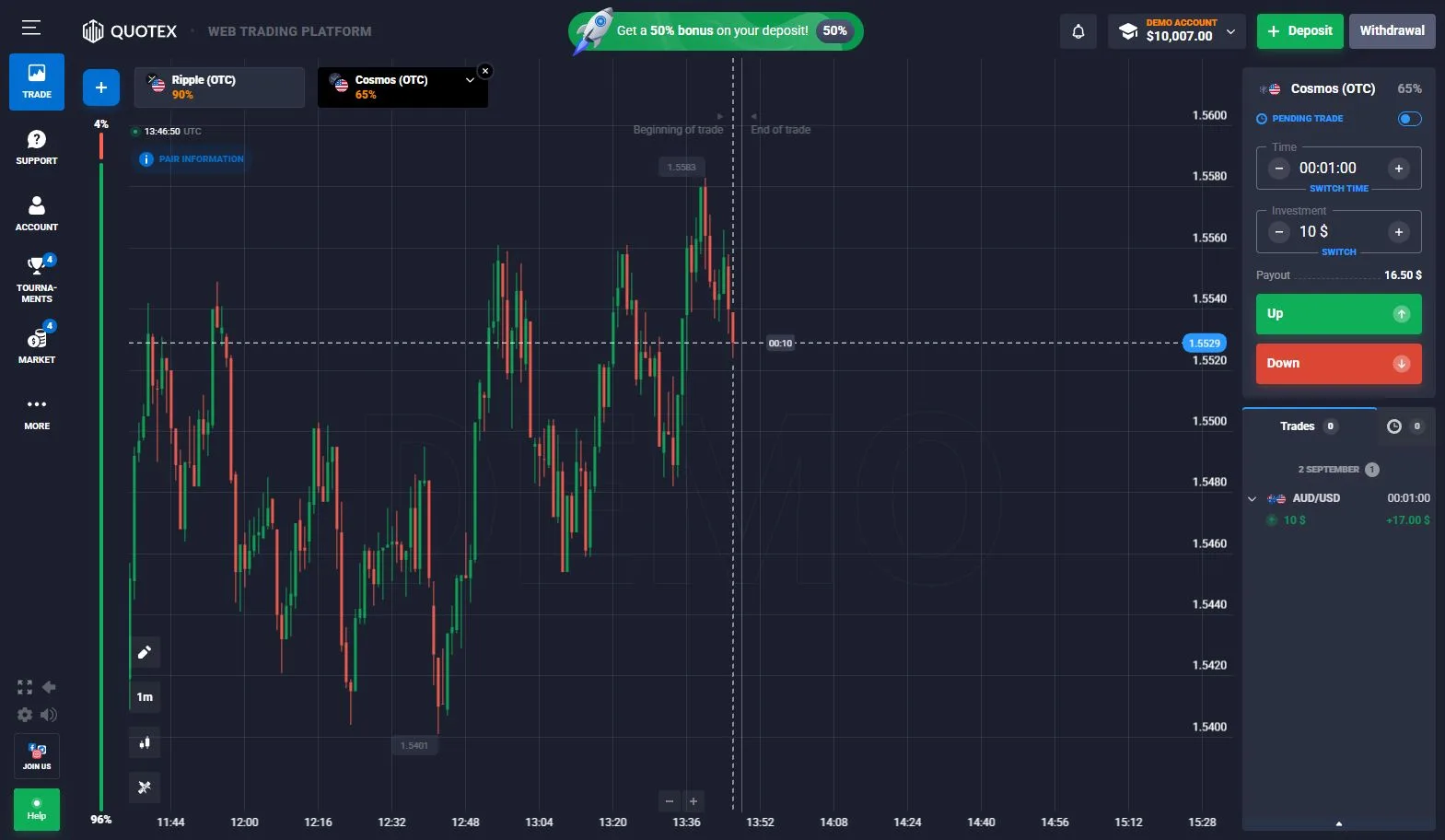
The saved Quotex demo image makes the order sequence easier to understand. It includes the asset names Ripple (OTC) and Cosmos (OTC), a contract expiry of 00:01:00, an investment field set to $10, direction buttons labeled Up and Down, and a Trades area. Those are details from a particular captured workspace, not permanently available prices or payout percentages.
Read the ticket from asset to result
- Asset. Open the asset menu and confirm the precise symbol and any OTC suffix. Two similarly named instruments are not necessarily the same contract.
- Chart. Look at the price history and choose a visible range or candle interval that helps you understand the on-screen movement.
- Expiry. Select when the digital-options contract will settle. A one-minute expiry is different from selecting a one-minute candle view: the chart interval changes presentation, while expiry defines the contract's result time.
- Investment. Enter the amount committed to this trade. The image shows $10; that does not mean the required account deposit is $10 per trade, and the platform also advertises trades from $1.
- Payout display. Examine the payout percentage displayed for the currently selected asset and expiry. It can differ between markets and sessions.
- Direction. Up expresses a prediction of a higher settlement price, and Down a lower one, relative to the contract's reference conditions.
- Trades. After expiry, use the result or history area to review the settled contract and distinguish it from still-open orders.
What the amounts mean in a $10 practice example
Suppose the virtual investment field is $10. That is the amount assigned to the single demo contract, not a withdrawal request and not a deposit. If the payout shown on screen is 80%, the displayed potential profit on a winning $10 contract would be $8, while the returned total would ordinarily be $18 under that contract's terms; a losing contract can lose the full $10 investment. The 80% here is an illustrative arithmetic example, not a claim about the live payout in the screenshot or an expected success rate. A draw or other settlement conditions follow the rules shown by the platform for the actual contract.
To learn the controls, use virtual funds first: change one setting at a time, read the selected expiry again and then inspect the final trade entry. That reveals what each field does without assuming that the next price move can be predicted reliably.
Quotex OTC Markets, Indicators and Chart Settings
The asset list is more than a menu of names. On the preserved trading screen, Ripple and Cosmos carry an (OTC) tag. Quotex uses such labels for particular instruments offered within its own quote and trading environment. Do not assume an OTC symbol on Quotex is identical to an exchange-traded pair or that its availability and payout are unchanged around the clock.
When you change assets, check three things again: the exact symbol, the payout displayed for that contract and the available expiry settings. A prior order ticket may no longer describe the symbol now selected. A screenshot that shows an amount or percentage on one date is not a price feed for later trading sessions.
Quotex advertises built-in indicators and chart tools. The practical sequence is to open the chart controls, choose a suitable candle or line presentation, set a viewing interval and only then inspect any indicator settings you want to practice with. The available list and its defaults can change by version or device. An indicator overlays or summarizes price information; it does not replace the expiry and investment fields on the actual trade ticket.
How the historical chart groups price movement.
The time used to settle a particular digital-options contract.
A useful demo check is to change the candle interval while leaving the chosen trade expiry unchanged. Observe that the chart is redrawn while the contract's time setting remains a separate control. Then open the asset list and compare how the available payout may differ on another symbol. That is a practical way to distinguish chart analysis from order execution.
Quotex Deposit Methods: Banks, E-Pay and Crypto in Real Menu Screens
The operator advertises a minimum real-money deposit from $10, while its Android app listing describes an individual trade starting from $1. These are not interchangeable amounts. A deposit increases the real account balance; the investment field assigns part of an existing balance to one contract. You can use the virtual demo without making either real-money transaction.
Our preserved payment screenshots show three genuinely different menu categories from an account session: Bank, E-Pay and Crypto. The screens help you understand what to look for, but not every region, currency or user will see the same providers. The live cashier decides which methods and minimums are available to your account.
How to inspect the deposit screen
- Sign in to your registered account and select Real, not Demo.
- Use Deposit in the workspace or account menu.
- Look at the visible categories and select the payment method that is available for your country and currency.
- Read the amount limits, currency and any quoted fee before entering payment details.
- For crypto, check the specific coin and its network. A matching coin name on a different network is not enough to identify the correct route.
- Confirm only after the platform displays the appropriate payment instructions. Return to the account's transaction history to see whether the deposit request was recorded.
| Captured menu | What our WebP shows | What you should check |
|---|---|---|
| Bank methods | Card and bank options, including Visa/Mastercard-style choices | Supported issuer, limits, local currency and any bank confirmation |
| E-Pay | A separate electronic-payment tab with regional providers | Wallet or provider identity, settlement currency and charges |
| Crypto | Coin and network selections in the funding interface | Coin, network, exact receiving details and required confirmations |
Bank-card screen. The saved Bank view illustrates how card providers are grouped in the cashier. When you see a similar menu, choose the option actually displayed in your own account, check its limits and follow any required issuer authorization. A method present in our image is not necessarily available where you live.
E-Pay screen. The E-Pay capture is useful because the cashier does not place all non-card payments in one generic list. Select the electronic-payment tab, find your supported service and read the confirmation page before submitting. Compare the final credited amount in your account currency rather than assuming a payment provider's original currency will match it exactly.
Crypto screen. The crypto image makes network selection visible. If the cashier provides a receiving address and network-specific instructions, both must match the network from which the transfer is sent. Do not reuse a deposit route or address from an old screenshot. Our second archived crypto image shows another state of this same category; it is a backup image, not a fourth payment method.
These are screenshots of available choices, not records of deposits made by this site. We do not claim that funds were transferred, received or withdrawn during preparation of these images.
Quotex Withdrawal: Published Minimums, Verification and Request Status
For most payment systems, Quotex's FAQ publishes a withdrawal starting amount of $10. For cryptocurrencies, it states a starting minimum of $50, potentially higher for certain currencies. Those are withdrawal thresholds, not trading-ticket amounts or the minimum needed to open an account. The amount available to withdraw can also depend on the chosen method and the specific account.
To find the route, sign in to the real-money account, open the relevant Withdrawal area, choose an available method and review the amount and payment details displayed there. The platform may request identity or payment verification. After sending a request, use the account's operations or transaction-status interface to check the recorded state; do not treat the withdrawal as completed merely because the request form was submitted.
The operator describes a typical processing window of one to five days from the request, depending on processing volume. This is its published guidance, not a confirmed processing time for a particular transfer. Payment intermediaries may have their own transfer schedules and fees. The operator says it does not charge deposit or withdrawal fees itself, while third-party providers may impose charges or apply conversion rates.
| Withdrawal item | Operator-published starting figure | Practical check |
|---|---|---|
| Most payment systems | From $10 | Confirm the method-specific minimum in your account |
| Cryptocurrency | From $50; certain currencies may be higher | Check coin, network and amount |
| Processing | Usually 1–5 days | Track the request status, not just the submission |
Our current collection contains real screenshots of the deposit-method menus, but not an actual withdrawal confirmation or a completed payout. Accordingly, this section explains the published process without claiming a deposit-to-withdrawal test. Virtual demo funds cannot be submitted as a real withdrawal.
Quotex on Android and iPhone: App, Browser and Home Screen
You do not need a desktop computer to open the Quotex interface. The operator offers a mobile-responsive web platform, an Android app listed as QxBroker - Investing Platform on Google Play and a home-screen installation route for supported browsers. These are related ways to access the platform, but they are not identical installations.
Android: browser first, app if preferred
- Open the platform in your mobile browser and choose the guest demo or sign-in flow.
- For a store installation, identify the operator-linked QxBroker - Investing Platform listing in Google Play rather than installing a similarly named third-party APK.
- Sign in if needed, select your Demo or Real account and verify that the asset, expiry and investment fields are visible without accidental taps.
The Google Play listing describes a $10,000 demo balance, deposits from $10 and contracts from $1. An app store may hide a listing in unsupported regions or on certain devices; use the browser route rather than interpreting a missing store result as proof that your trading account no longer exists.
iPhone: browser or PWA
On iPhone, use Safari to open the supported trading website, then sign in normally. The operator's iOS guidance describes a Progressive Web App (PWA): Safari's Share or browser menu offers Add to Home Screen, after which a shortcut can launch the site in an app-like view. The exact menu differs across iOS versions; follow the controls shown on your device. A PWA is not the same as an App Store-native application.
Before placing even a virtual contract on a small screen, read the selected account balance, asset name, expiry and investment amount. Mobile layouts rearrange controls into narrower panels; keep the device upright or rotate it if your browser makes the order ticket easier to read that way.
Our saved images were captured from the website's desktop-style interface, not from an Android app or iPhone home screen. They illustrate the controls to look for, while the live device determines how those controls are laid out.
Quotex FAQ: Demo, Login, Deposit and Mobile Access
Can I use a Quotex demo account without signing up?
Quotex advertises a guest demo route that does not require registration. Choose Try demo when it appears on the platform entry screen. If you want a registered practice account, create an account and select the Demo balance in the terminal.
How much virtual money does the Quotex demo account include?
The operator advertises a $10,000 virtual practice balance. It is used to explore the trading interface, does not represent deposited money and cannot be withdrawn. The displayed amount and available reset controls should be checked in the live demo workspace.
How do I register and then switch to my Quotex demo balance?
Open Sign Up, select your country and account currency, enter email and password, review the optional promo field and eligibility confirmations, and complete registration. In the trading workspace, use the account selector to choose Demo rather than Real.
What should I do if I cannot log in to Quotex?
Choose the Login tab, check that you are using the email associated with the account and enter its password. Use Forgot your password? for recovery. A guest demo session is not the same as a registered login, and this independent guide cannot reset credentials.
What is the advertised minimum deposit on Quotex?
Quotex publishes a starting real-money deposit of $10. Depositing funds is separate from choosing the amount of a trade. Review the live cashier for the minimum, supported payment method and account currency that apply to you.
How much can one Quotex trade start from?
The operator-linked Android app listing advertises trades from $1. This is the starting investment for one contract, not the required account deposit. The amount displayed on the trading ticket can vary with the selected instrument and account conditions.
What is the minimum withdrawal amount on Quotex?
The official FAQ states withdrawals start from $10 for most payment systems and from $50 for cryptocurrencies, with higher minimums possible for particular currencies. Use the account's Withdrawal area to confirm the actual method and threshold.
Can I use Quotex on Android or iPhone without an app?
Yes. The trading website can be accessed in a mobile browser. Android users may also have an operator-linked Google Play app; iPhone users can use Safari and, if desired, add the site to the Home Screen as a PWA. A browser shortcut is not a native App Store app.